Start your first round
- Tap to play. Open the game and tap the prompt inside the board. It runs in the browser with no app download.
- Pick a place to stop. Find your character and watch the nearest Seeker's light. Choose a nearby tile away from the light before dragging.
- Drag, then lift. Move with one finger inside the board. Lift your finger when you reach the tile, then wait for the Camo meter under the board to fill.
- Watch Alert while you wait. A rising Alert bar means the Seeker has spotted you. Let the light sweep past before making your next move. You can survive the round without collecting every firefly.
One move in Round 1, before and after release
Both images are from the same move in Round 1. Score stayed at 0, and the Seek timer counted from 12 to 11.
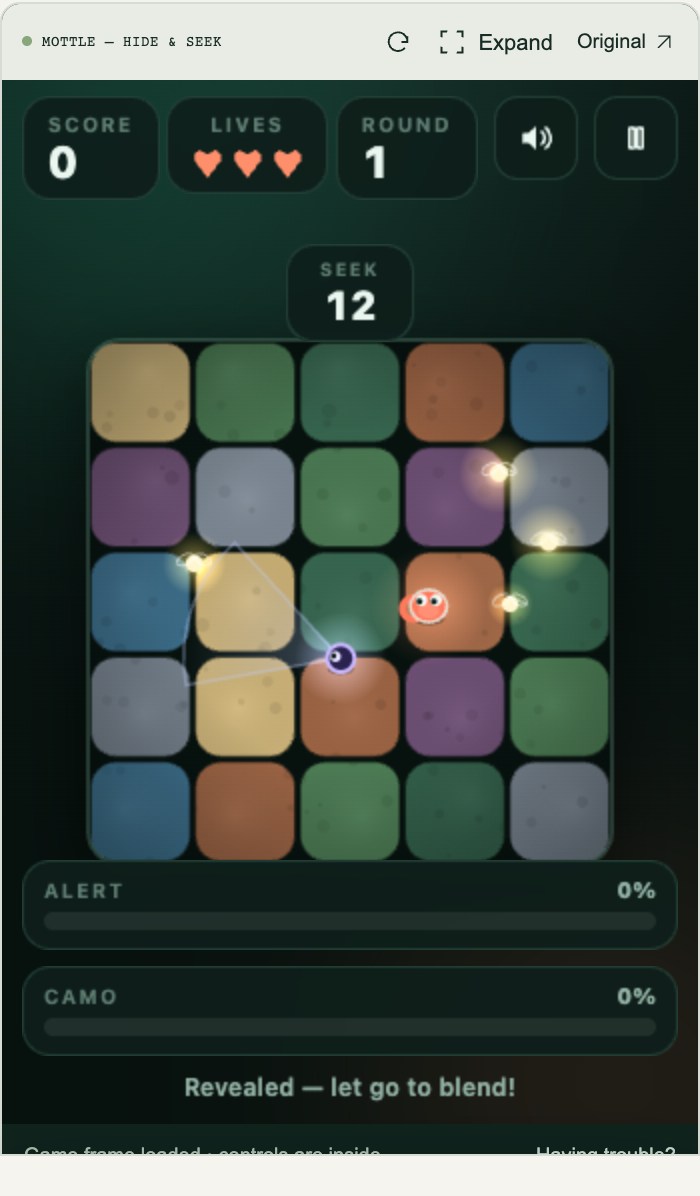
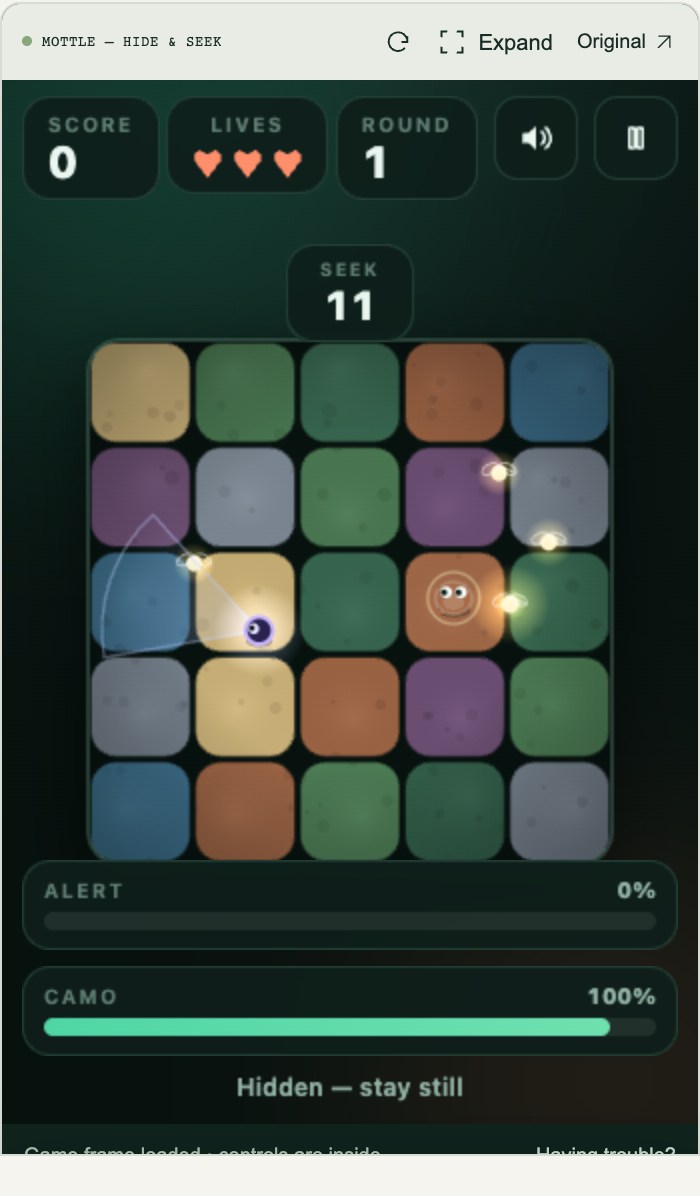
Gameplay by Star Lord. Screenshots captured by ismottleagame.org.
Fit the game to your screen
Tap Expand in the bar above the board for a larger view. Tap Close to return to the page. We checked that both views kept the current game open in portrait (390 × 844) and landscape (844 × 390) Chrome touch emulation. Physical phones and mobile Safari remain untested.
To scroll the page, begin your swipe outside the board. During the drag in the screenshots, the page stayed still. The speaker button inside the game controls sound.
If the board is blank, wait for it to load and try the circular Reload button above it. You can also open the creator's 8x.gg player to check whether the game starts there. If you already see Paused, follow the Resume recovery steps.
Frequently asked questions
Do I need to download an app or APK to play Mottle on a phone?
No. Mottle — Hide & Seek runs directly in your mobile browser with no app download or APK required. Open the board and tap Tap to play to begin Round 1.
How do you stop moving and camouflage on a touchscreen?
Drag inside the board with one finger to move, then lift your finger completely off the screen. Camo builds after you release while the Seek timer keeps running.
Does Expand work in portrait and landscape on a phone?
In our Chrome touch-emulation tests at 390 × 844 and 844 × 390, tapping Expand enlarged the board and Close returned to the page without restarting the round.